What is a GitHub Profile README?
A GitHub profile README is a Markdown document displayed on your public GitHub profile when you create a public repository with the same name as your username and add a README.md file to it. On GitHub, that special repository gives you a stable place to explain your focus, show selected work, and point visitors toward useful links.
The best first version is not a wall of badges. It is a short, readable landing page for your GitHub work: a one-sentence introduction, a current focus, two or three projects with evidence, and links that help a visitor take the next step. You can expand it later after you know which information people actually need.
This page focuses on creating and publishing the profile README. Use the template guide for structure, the ideas guide for inspiration, and the generator for a copyable first draft.
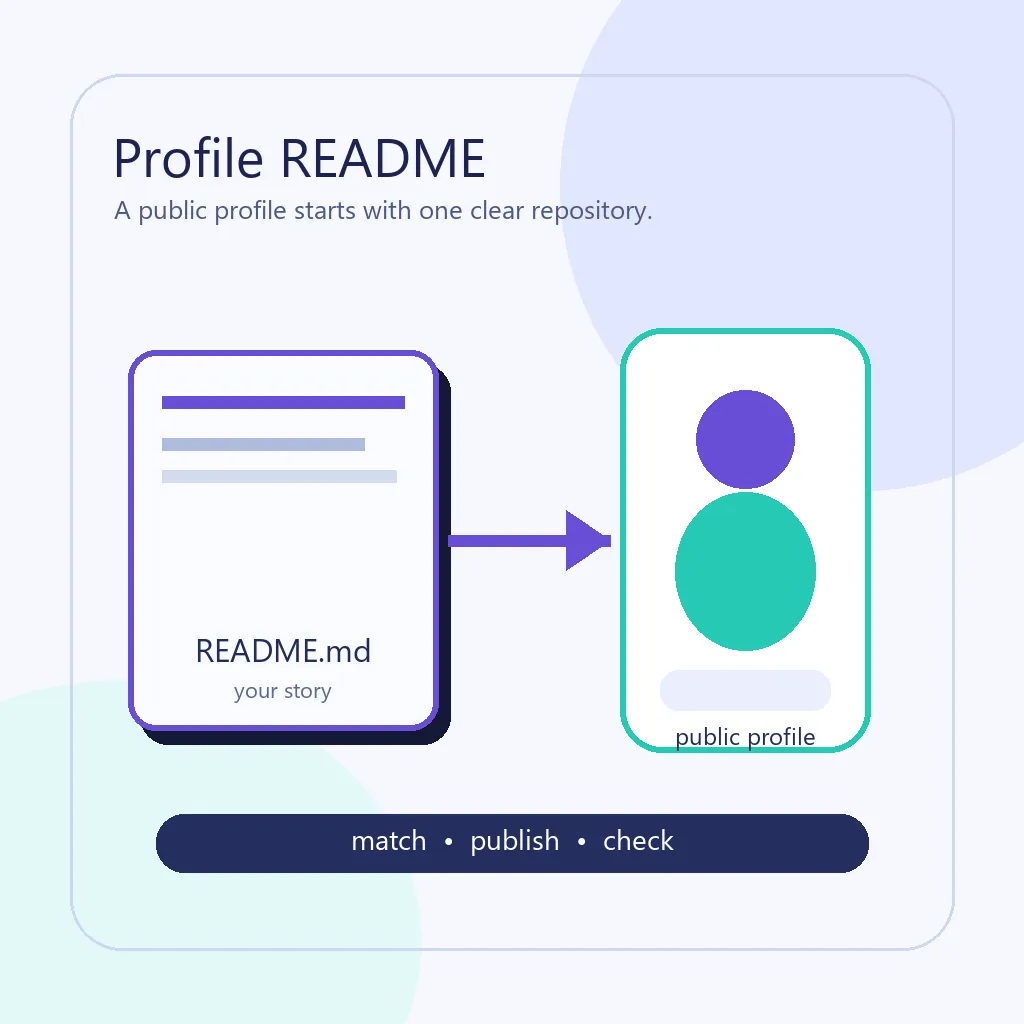
What you need before you start
The setup is simple, but each requirement matters. A similar name, private visibility, or misplaced file can make a correct GitHub README invisible. Confirm the basics before adding colors, badges, or widgets.
Treat the GitHub profile repository like a small public project: use real links, keep the first commit clear, and never publish secrets or unsupported claims. GitHub's documentation is the final authority when the interface changes.
| Requirement | Why it matters | Keep in mind | Common mistake |
|---|---|---|---|
| Repository name | GitHub uses the username-matched repository to identify the profile README. | Copy your exact username, including punctuation and capitalization where GitHub requires it. | Creating a repository with a display name, nickname, or an extra suffix. |
| Public visibility | The profile README is intended to be visible to profile visitors. | Check the repository's visibility before troubleshooting the Markdown. | Assuming a private repository will render as public profile content. |
| README.md | The Markdown file is the document GitHub renders for the repository and profile. | Put README.md in the repository root and keep the file name clear. | Saving it as README, readme.md in another folder, or a local file that was never committed. |
| Useful first draft | Visitors need context and proof before decorative extras. | Start with a short bio, focus, projects, links, and a next action. | Opening with a long badge row that hides what you actually build. |
| Safe links | A profile README is public and often copied or shared. | Review URLs, email addresses, images, tokens, and embedded services before publishing. | Including secrets, private dashboards, expiring links, or unverified claims. |
How to create and add a GitHub Profile README
You can create the profile README from GitHub's new repository flow or by pushing a local repository. The important part is the relationship between the GitHub repository name, its public visibility, and the README.md file. Follow the sequence below so you can isolate a setup problem instead of guessing at Markdown syntax.
After the first version is live, treat updates like normal documentation work. Preview headings and links, open the public profile in a signed-out or private window when practical, and remove sections that no longer describe your current work.
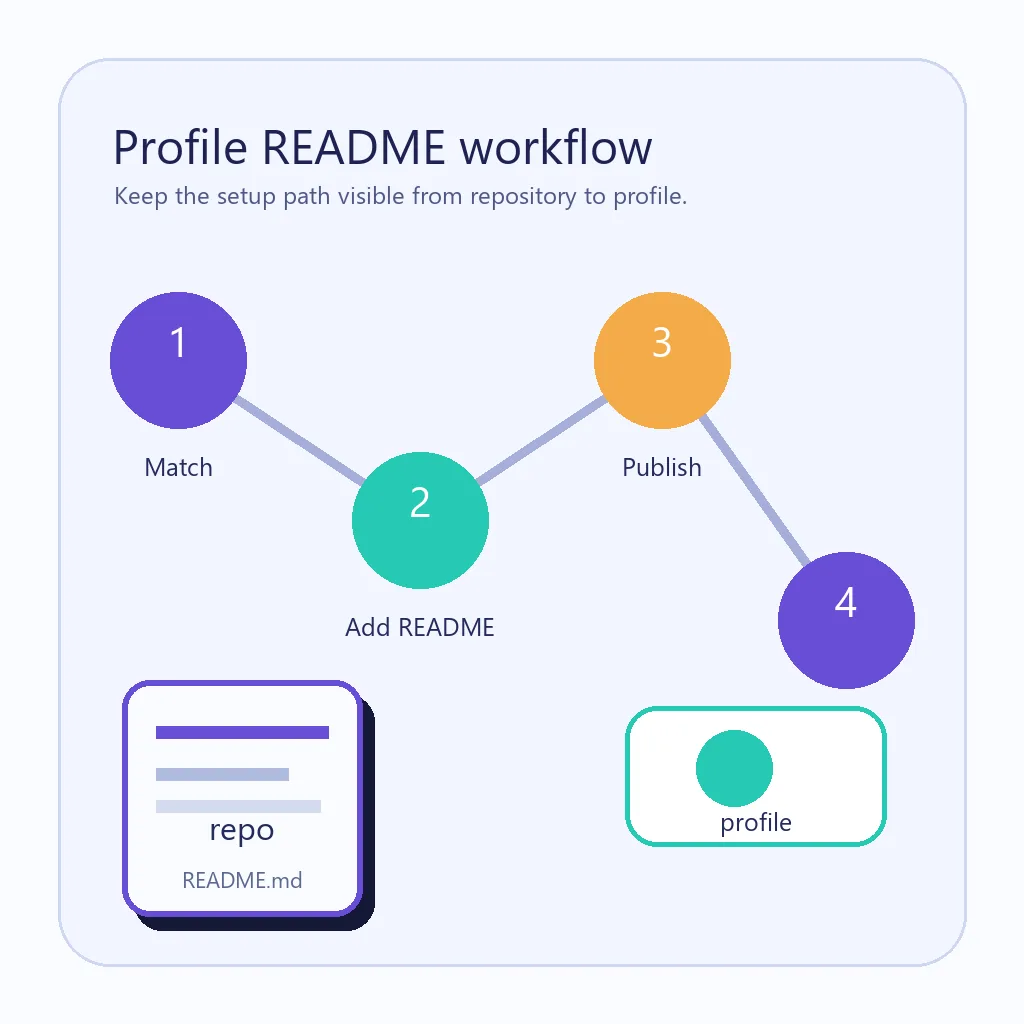
Confirm your exact username
Open your GitHub profile and copy the username from the GitHub profile URL. Do not rely on the name shown in the profile header if it differs from the account handle.
Create the matching public repository
Create a new repository with the exact username as its name. Keep it public if you want the profile README to be visible to everyone, and initialize it with a README or add one in the next step.
Write the README.md file
Start with a short introduction, current focus, selected projects, and useful links. Use headings and short paragraphs so a visitor can scan the page before deciding what to open.
Commit and review the public page
Commit the README to the repository's active branch, open the repository page, and check that the Markdown renders without broken images, private links, or accidental secrets.
Open your profile and refine it
Return to your public profile and verify that the profile README appears. If it does not, use the checklist below before changing the content or adding more widgets.
What to put in the README
A GitHub profile README should answer four quick questions: who are you, what are you working on, what can a visitor inspect, and where should they go next? Choose sections that prove or clarify something; you do not need every popular widget.
Use the examples below as directions, not promises to copy. A project sentence is stronger when it links to a repository, demo, release, article, or screenshot that a reader can verify.
A one-line introduction
Say your role or direction in plain language. Replace vague claims with a concrete focus such as data tools, frontend accessibility, or open-source documentation.
Current focus
Mention what you are learning, shipping, or maintaining now. This gives the profile a time boundary and helps visitors understand which projects are active.
Selected projects
Choose two or three repositories and explain the problem, your contribution, and the result. Link to evidence instead of listing every experiment.
Useful links
Add a portfolio, writing archive, contact method, or community profile when it is public, current, and genuinely useful to the reader.
Optional visuals
Add badges, contribution visuals, or stats only after the core story is clear, and remove anything stale or decorative.
Use templates, generators, and visuals in the right order
A template is useful when you need a starting structure, not when it makes every profile look identical. The profile README template guide helps you decide which sections belong together and which claims need proof. The goal is a profile that sounds like you and is easy to maintain after the first week.
A generator can speed up the first draft, but it cannot verify your projects or choose the right boundaries for your personal story. Use the browser-based README generator for a copyable outline, then edit the Markdown against your actual repositories. If you want visual ideas, the profile README ideas guide is a better place to compare options than a random badge collection.
Simple rule
Publish the clearest useful profile first. Add badges, stats, or contribution graphics only when each element helps a visitor understand your work or choose a next step.
Why your GitHub Profile README is not showing
When GitHub does not display the profile README, check the publishing conditions before rewriting the content. Most failures are naming, visibility, path, branch, or account mismatches rather than Markdown quality problems.
| Problem | Likely cause | Fix |
|---|---|---|
| The repository name is close but not exact | The repository was created with a nickname, display name, or an extra character. | Compare the repository name with the username in your profile URL and correct the name if needed. |
| The repository is private | Visibility was changed during setup or the repository was created inside a restricted organization. | Review the repository visibility and organization policy before expecting public profile visitors to see it. |
| The file is not README.md in the root | The file was renamed, placed in a folder, or saved only on your computer. | Put README.md at the repository root, commit it to the active branch, and open the repository page to confirm it renders. |
| The profile is showing an older version | The latest edit was not committed, was pushed to another branch, or the browser is showing cached content. | Check the commit history and active branch, then refresh the profile or open it in a private window. |
| Images or badges are broken | A relative path, private asset, renamed branch, or expired external URL is used. | Open each asset URL from the rendered repository page and replace unstable or private sources. |
| The page is hard to read | Too many widgets, long paragraphs, or headings that do not match the content. | Move the introduction and project proof higher, shorten sections, and remove decorative blocks that do not help a visitor. |
FAQ About GitHub Profile READMEs
Is a GitHub profile README free?
Yes. The profile README uses GitHub repository and Markdown features, so you can create it without buying a separate website or hosting plan. You still need to follow your account, organization, and repository visibility settings.
What should the profile README repository be called?
Use a repository name that exactly matches your GitHub username. Compare the repository URL and profile URL rather than relying only on the display name shown in the interface.
Can a private repository power a profile README?
A private repository is not a reliable way to publish a profile README for public visitors. Check the current GitHub documentation and repository visibility before troubleshooting the Markdown itself.
Can I use a GitHub profile README generator?
Yes. A generator can help with a first outline or Markdown syntax, but review every sentence, project link, image, badge, and claim against your real profile before publishing.
What should I avoid putting in a profile README?
Avoid secrets, private URLs, stale badges, excessive animations, unverified claims, and long blocks that bury your current work. Public documentation should be easy to scan and safe to share.