How to use the GitHub Profile README Generator
The generator is designed for the first useful version of a profile README. Start with the message you want a visitor to remember, then add proof links and selected projects. You can add badges, stats, or contribution visuals after the text is clear.
Everything happens in the current browser page. The output is ordinary Markdown, so you can inspect every line before moving it to GitHub.
Write the opening
Add a name and headline that explain your role, focus, or current direction in one glance.
Add proof
Use the bio, skills, links, and projects fields to point visitors toward work they can inspect.
Generate and review
Create the Markdown, check headings and URLs in the preview, then copy the output.
Publish carefully
Paste the Markdown into a public repository named exactly like your GitHub username and verify the profile view.
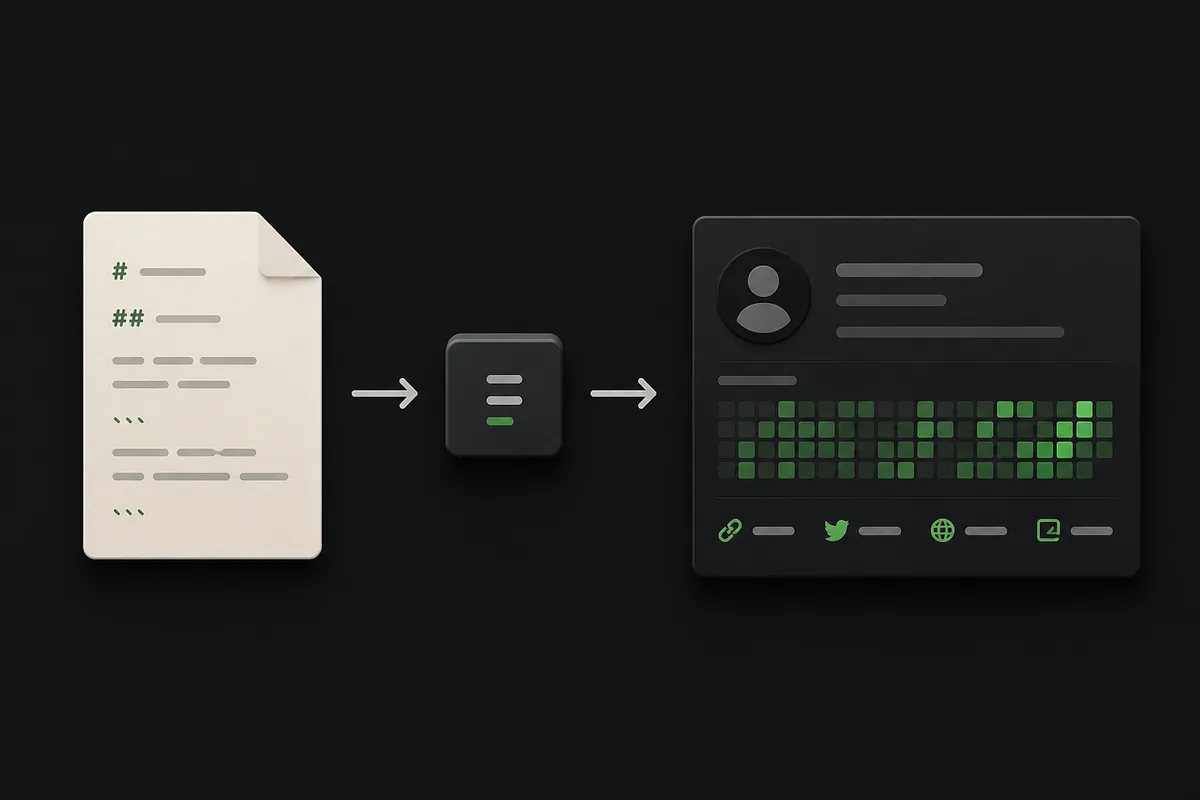
What the generator includes
This is a focused profile README generator rather than a badge wall or a stats dashboard. It gives the opening text and useful navigation a stable structure, while leaving room for you to add visuals later.
The generated sections are intentionally simple. Simple Markdown is easier to edit, mobile-test, and keep current when your projects or career direction changes.
Identity and focus
A top-level name and blockquote headline create a clear first screen for a visitor.
Bio and skills
Short context and a readable skill list help a reader understand what you work with now.
Links
Labeled links make a portfolio, social profile, or contact path easier to scan.
Featured projects
Project names, descriptions, and URLs turn the README into a path toward real work.
Example output
The preview stays close to the Markdown you will paste into GitHub. You can remove sections, rename headings, or add a short note before publishing.
If you need inspiration before filling the form, compare the structure with the Profile README Ideas and Profile README Template guides linked below.
# Ada Lovelace

> Mathematician building analytical tools

I enjoy turning complex ideas into useful software and explaining the reasoning behind it.

## Skills

- Python
- Data Visualization
- Technical Writing

## Links

- [Portfolio](https://example.com)
- [GitHub](https://github.com/ada-lovelace)

## Featured Projects

- [Analytical Notebook](https://github.com/ada-lovelace/analytical-notebook) — Reusable notebooks for clear data stories

---

Built with the GitHub Profile README Generator.
Validation and edge cases
The tool validates the fields that most often create a broken first draft. It does not try to judge your writing, project quality, or choice of visual widgets.
| Case | What happens | What to do |
|---|---|---|
| Missing name or headline | Generation stops and a required-field message appears. | Add both opening values before generating. |
| Invalid link URL | The line number is shown in the status message. | Use an http or https URL and keep the label before the pipe. |
| Skills separated by commas or lines | Both formats become a clean bullet list. | Use whichever format is fastest to maintain. |
| No optional fields | The README still contains a useful opening and generator footer. | Add projects or links later when you have proof to share. |
Publish your profile README
GitHub displays a profile README when you create a public repository whose name exactly matches your username and place a README.md file in that repository. Use GitHub's official documentation as the source of truth if the profile card does not appear.
Before publishing, open the Markdown in your actual profile view, test every link, check the first screen on mobile, and remove claims or widgets that are no longer current. The generator creates a starting point; your review keeps it accurate.
GitHub Profile README Generator FAQ
How do I add a README to my GitHub profile?
Create a public repository with the exact same name as your GitHub username, add a README.md file, and GitHub can display that README on your profile page.
Why is my profile README not showing?
Check that the repository name exactly matches your username, the repository is public, the file is named README.md, and you are viewing the profile associated with that account.
Do I need a public repository for a profile README?
Yes. GitHub's profile README convention uses a public repository named exactly after your username. Follow the official GitHub documentation for current visibility rules.
How can I add languages or skills to my profile README?
Use the Skills field in this generator, then edit the generated Markdown if you want grouped lists, badges, or small icons. Keep the list limited to skills you can explain with real work.
How do I add links and projects?
Add one link per line in Label | URL format. Add one project per line in Project | description | URL format. The generator checks that the final value is an http or https URL.
Does this generator save my input?
No account is required and the tool does not need to save your form values on the site. The Markdown is created in the current browser page, so copy it before closing the tab if you want to keep it.